iPhone Shortcuts Automations: Triggers Explained (Time, Location, NFC, Apps)
What is a Shortcuts Automation?
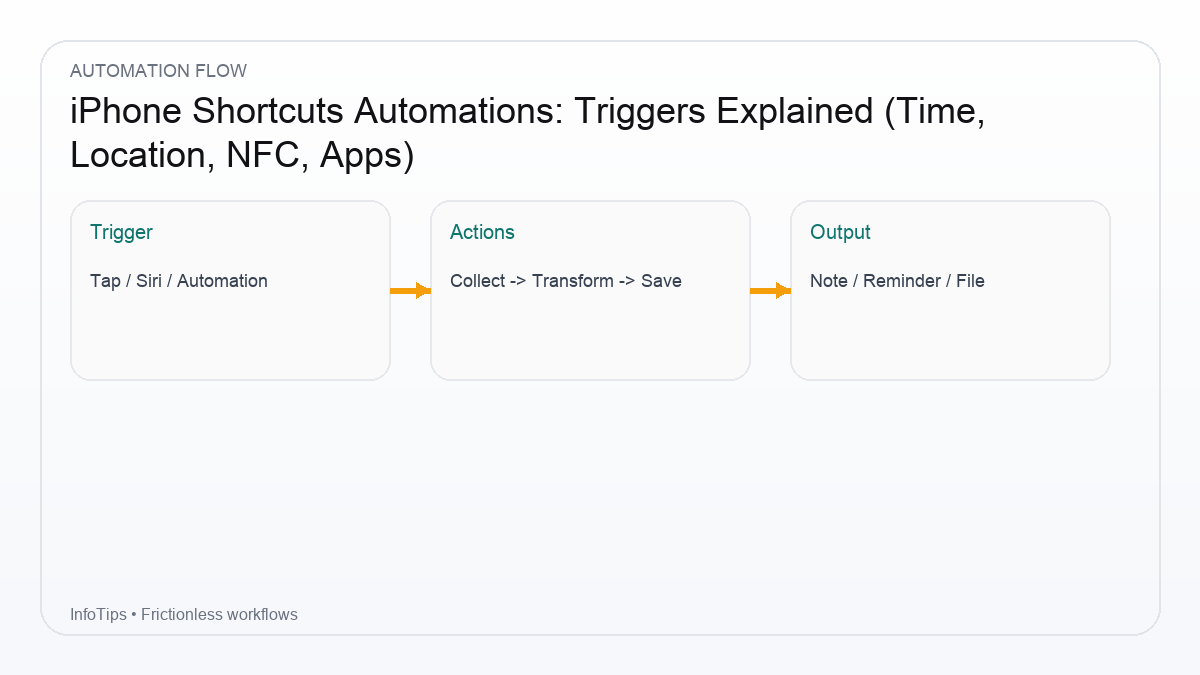
An Automation runs a shortcut when a trigger happens. Triggers include time, location, NFC tags, connecting to Bluetooth, opening an app, and more. The exact list and “run without confirmation” behavior can vary by iOS version and trigger type.
Trigger types (and when to use them)
| Trigger | Best use | Notes |
|---|---|---|
| Time of Day | Daily routines | Most predictable |
| Arrive/Leave Location | Commute/home mode | Can affect battery if overused |
| NFC | Tap-to-run routines | Great for desk/car tags |
| App Open/Close | Context switching | Good for Focus toggles |
| Battery Level | Power saving | Simple and useful |
| Wi‑Fi/Bluetooth | Environment detection | Depends on device support |
How to create an Automation (step-by-step)
- Open Shortcuts → Automation
- Tap New Automation (or +)
- Choose a trigger (start with Time of Day)
- Choose Run Immediately / confirmation behavior if available
- Select actions or choose Run Shortcut to reuse an existing shortcut
- Save and test
Recommended “starter automations” (low risk)
1) Battery saver at 25%
- Trigger: Battery Level falls below 25%
- Actions: Low Power Mode ON, reduce brightness
2) Work focus when opening your work app
- Trigger: When App is opened (e.g., Slack, Mail)
- Actions: Set Focus “Work”
3) Daily capture reminder
- Trigger: Time of Day (e.g., 9:00 PM)
- Actions: Show Notification “Any loose ends to capture?”
Common pitfalls
- Too many automations: Start with 1–2 that you truly need.
- Fragile assumptions: If your shortcut expects clipboard text, handle empty clipboard.
- Permissions: Some actions require access (Location, Photos, etc.). Grant them intentionally.
Checklist: making automations reliable
- Prefer “Run Shortcut” action over duplicating logic in each automation.
- Add a final notification during testing (remove later if annoying).
- Keep the shortcut idempotent (running twice shouldn’t break anything).
- Log important output to Notes/Files if it matters.
FAQ
Why does my automation ask for confirmation?
Some triggers/actions are restricted for privacy. Confirmation requirements can change by iOS version.
Are location automations safe for battery?
A few are usually fine. Many location automations or frequent geofencing can add overhead.
Should I use NFC or location for “arrive at desk”?
NFC is often more reliable: it’s explicit and doesn’t depend on GPS accuracy.
Can automations run when my phone is locked?
Some can, but it depends on trigger type and actions. Test your specific workflow.
Where do I troubleshoot failures?
Start by adding a notification at key steps, and check permissions and Focus settings.
Next reads