What Is iPhone Shortcuts? A Practical Beginner’s Guide (2026)
Quick definition
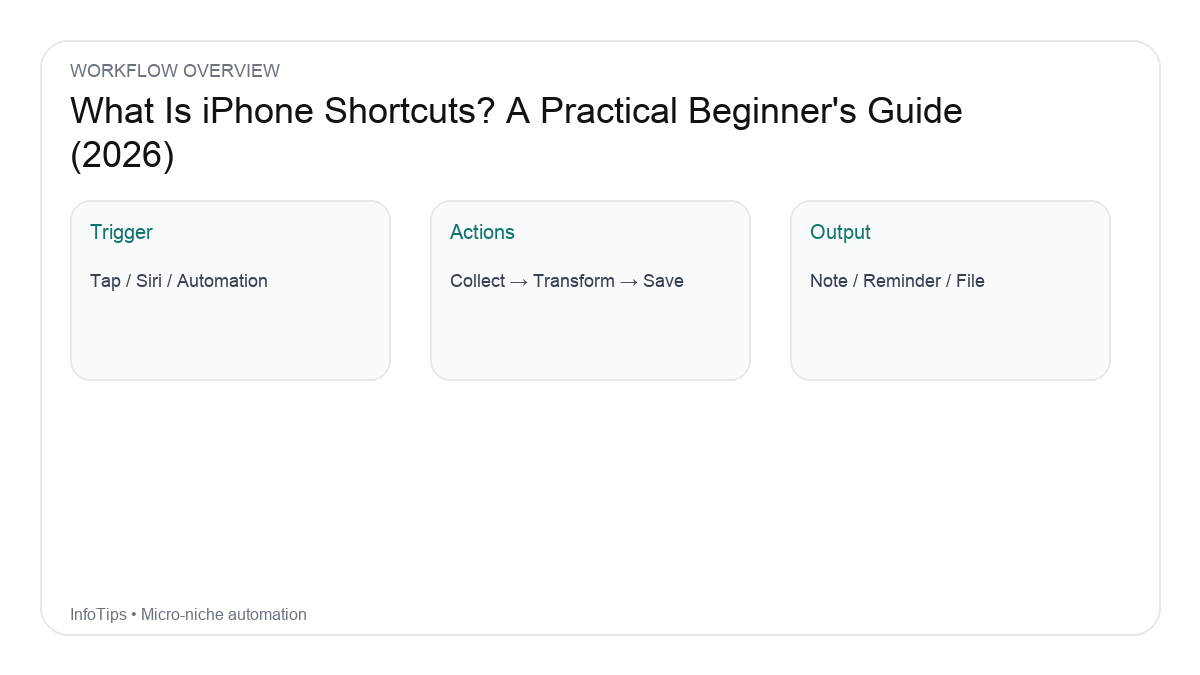
iPhone Shortcuts (the Shortcuts app) is Apple’s built-in automation tool that lets you chain actions together, then run them with a tap, a Home Screen icon, Siri, or an Automation trigger (time, location, NFC, etc.). Think of it as “If I do X, then do Y and Z,” but with dozens of ready-made actions for apps like Safari, Photos, Files, Reminders, and more.

Why Shortcuts are worth learning (even if you’re not technical)
- Save time on repetitive taps: turning a 12-step routine into a 1-tap flow.
- Consistency: same steps every time (great for daily admin tasks).
- Better capture systems: quick notes, reminders, and file organization.
- Cross-device: many shortcuts can run on iPhone, iPad, and Mac.
Common Shortcuts terms (plain English)
| Term | What it means | Example |
|---|---|---|
| Shortcut | A workflow made of actions | “Morning routine” |
| Action | A single step in a workflow | “Get current weather” |
| Input | Data coming into a shortcut | Text, URL, photo |
| Output | Result produced by actions | A formatted note |
| Variable | A named piece of data you reuse | “Meeting title” |
| Magic Variable | Auto-created variable from previous actions | The text you just generated |
| Automation | Trigger that runs a shortcut automatically | At 7:30 AM |
What Shortcuts can do (realistic examples)
- Convert a webpage to a clean reading note (title + URL + summary placeholder) in Notes.
- Create a calendar event from copied text (date/time parsing depends on format).
- Batch rename and move screenshots into a folder in Files.
- Start a focus mode when a specific app opens, then revert when it closes.
What Shortcuts cannot do (important limits)
- It can’t break app permissions: some apps don’t expose actions or data.
- Truly “silent” automation is limited: some triggers still require confirmation depending on iOS version and action type.
- Background execution is constrained: iOS aggressively manages background tasks.
Beginner-friendly learning path (7 days)
- Day 1: Run 3 Gallery shortcuts and read their actions.
- Day 2: Edit one shortcut (change a text, a folder, or a note).
- Day 3: Make a 5-action shortcut (copy text → format → save to Notes).
- Day 4: Learn variables (use “Ask for Input” + reuse it twice).
- Day 5: Add an Automation trigger (time of day) and test it.
- Day 6: Share a shortcut to yourself (iCloud link) and re-import.
- Day 7: Build one “daily driver” shortcut you’ll use every day.
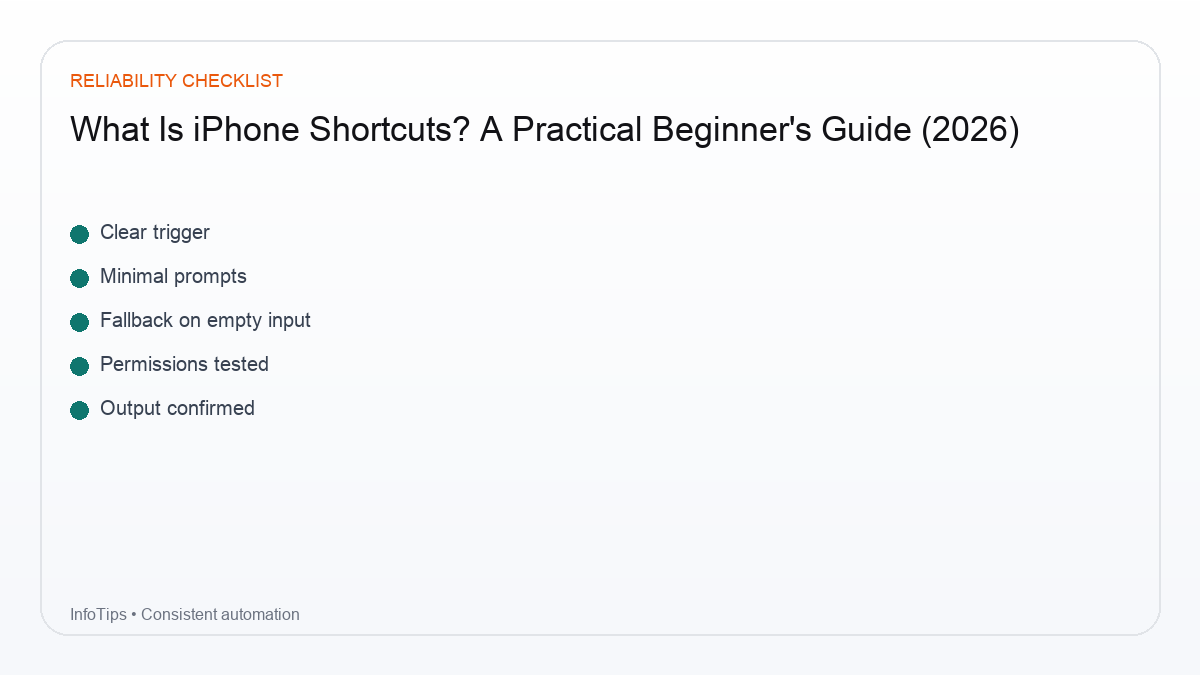
Checklist: a good first shortcut
- It saves at least 30 seconds per use.
- It has a clear start and a clear end (no endless menus).
- It handles failure: missing permission, empty input, or canceled prompts.
- It logs output somewhere (Notes/Reminders/Files) so you can confirm it worked.
FAQ
Do I need coding to use Shortcuts?
No. You build flows by selecting actions. Thinking in steps helps, but you don’t need programming.
Will Shortcuts drain battery?
Most simple shortcuts won’t. Frequent automations (location-based) can have more impact, depending on how they’re set up.
Can I download shortcuts from the internet?
Yes, via iCloud links, but only import from sources you trust and review the actions before running.
Can I run shortcuts on Mac?
Often yes, especially if you have the Shortcuts app on macOS. Some iOS-only actions won’t exist on Mac.
Where should I start next?
Start with a small “capture” workflow (Notes/Reminders) or a one-tap routine you repeat daily.
Next reads