Fix: iPhone Shortcuts Automation Not Running (Most Common Causes)
Symptoms
- An automation never runs.
- It runs sometimes, but not consistently.
- It runs, but a key action fails (no output, wrong app opens, etc.).
Quick checklist (do these first)
- Confirm the automation is enabled (Shortcuts → Automation → toggle on).
- Run the underlying shortcut manually to confirm it works.
- Check permissions: Location, Photos, Calendar, Reminders, etc.
- Ensure Focus/Screen Time restrictions aren’t blocking notifications or app behavior.
Most common causes (and fixes)
1) The trigger requires confirmation
Depending on trigger/action type and iOS version, you may need to tap “Run.” If you expect silent behavior, redesign: use an explicit trigger (NFC) or a simpler action set.
2) Low Power Mode / background constraints
Some behaviors may be less reliable when the device is aggressively conserving power. If an automation is critical, keep it minimal and test with and without Low Power Mode.
3) Location trigger is too broad or inaccurate
- Use a smaller geofence if possible.
- Prefer “Arrive” at a stable location over “Leave” if your device often reconnects.
- Consider NFC for desk/home routines.
4) The shortcut expects input, but automations provide none
Automations run without you actively selecting share sheet input. If your shortcut starts with “Ask for Input,” it may hang or fail in the background. Fix: add an If to detect missing input and use defaults.
5) An action fails silently (permissions or app changes)
Apps update. Actions can change names or stop working. If an action depends on a third-party app, test after updates and keep a fallback (e.g., save to Notes instead of a specific app).
Debug method that actually works
- Add a Show Notification at the top: “Started.”
- Add another after each major step.
- Run the automation and note which notification is the last one you see.
- That step is your failure point. Fix permissions, inputs, or replace the action.
Table: failure pattern → likely cause
| What you see | Likely cause | Fix |
|---|---|---|
| Never runs | Disabled / confirmation required | Enable / adjust trigger |
| Runs sometimes | Location/Bluetooth unreliability | Use NFC / simplify |
| Runs but does nothing | Missing input / permission | Defaults + permission check |
| Stops mid-way | One action failing | Replace action + debug notifications |
Checklist: redesign for reliability
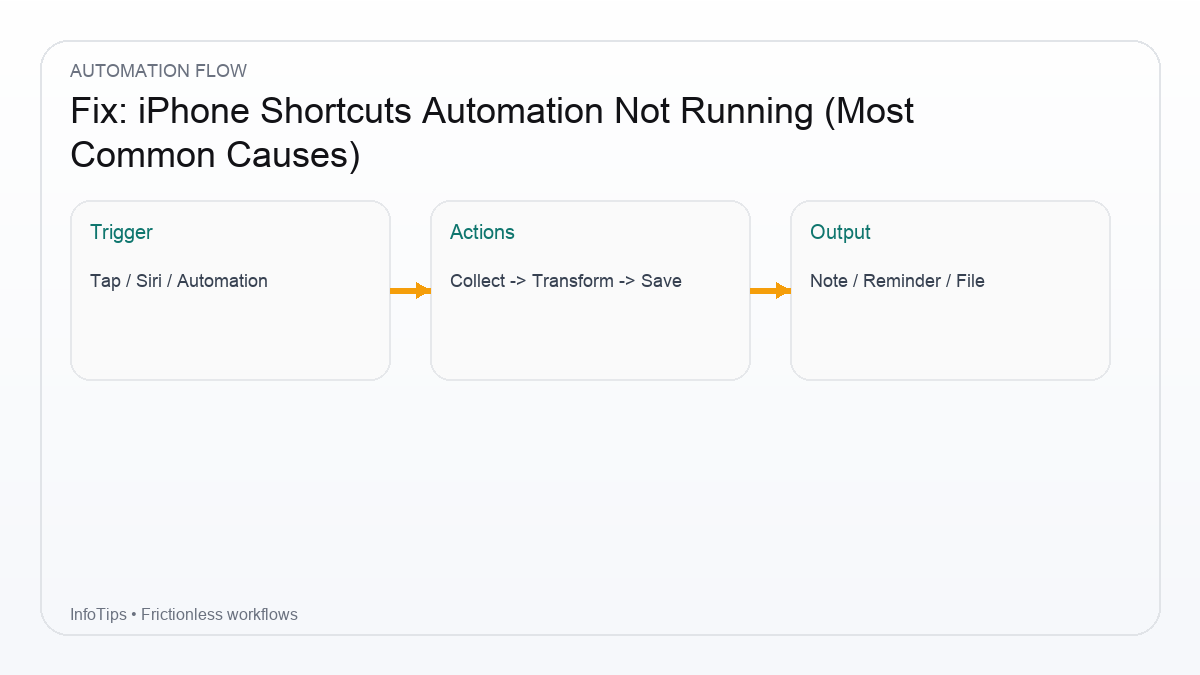
- Keep automations short: trigger → run shortcut → finish.
- Avoid prompts in automations. Prompts belong in manual shortcuts.
- Prefer deterministic data sources (date/time) over flaky ones (clipboard).
- Add graceful exits (if missing permission, show a notification and stop).
FAQ
Can I force silent automation for everything?
No. Apple enforces confirmation for some triggers/actions. Design around it.
Why did it stop working after iOS update?
Actions and permissions can change. Re-test critical automations after updates.
What’s the most reliable trigger?
Time of day and NFC are usually the most predictable.
Should I reboot?
It sometimes helps, but treat it as a last step—find the root cause first.
Where can I see automation logs?
Shortcuts doesn’t provide rich logs; use notifications, saving to Notes, or temporary debug actions.
Next reads