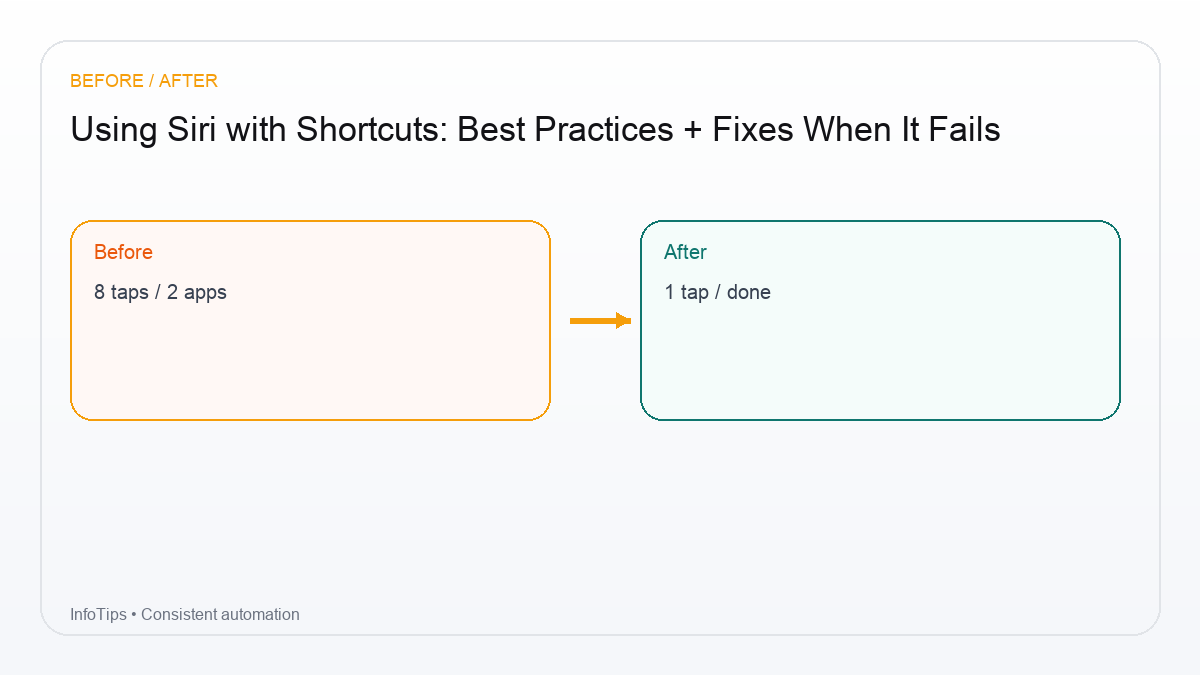
Using Siri with Shortcuts: Best Practices + Fixes When It Fails
Why Siri + Shortcuts is powerful (and why it sometimes fails)
Siri can run any shortcut by name, which turns your best workflows into voice commands. The downside is that Siri is sensitive to naming, context, and permissions. This guide shows the practices that make Siri reliably launch the right shortcut—and how to troubleshoot when it doesn’t.

Best practices for Siri-friendly shortcuts
1) Use clear, unique names
- Good: “Capture to Notes”, “Start Meeting Mode”, “Log Water”
- Avoid: single vague words like “Start” or “Home”
- Keep it pronounceable—Siri struggles with weird symbols
2) Keep the first 5 seconds simple
If Siri launches a shortcut but it immediately asks for three inputs, you’ll hate using it. For voice-first shortcuts, either:
- Use sensible defaults, or
- Ask for one input max, then proceed
3) Prefer deterministic actions
Shortcuts that depend on clipboard contents or ambiguous text parsing will feel flaky. Use explicit inputs (“Ask for Input”) or stable sources (Calendar, Reminders, Files).
Voice-ready shortcut patterns
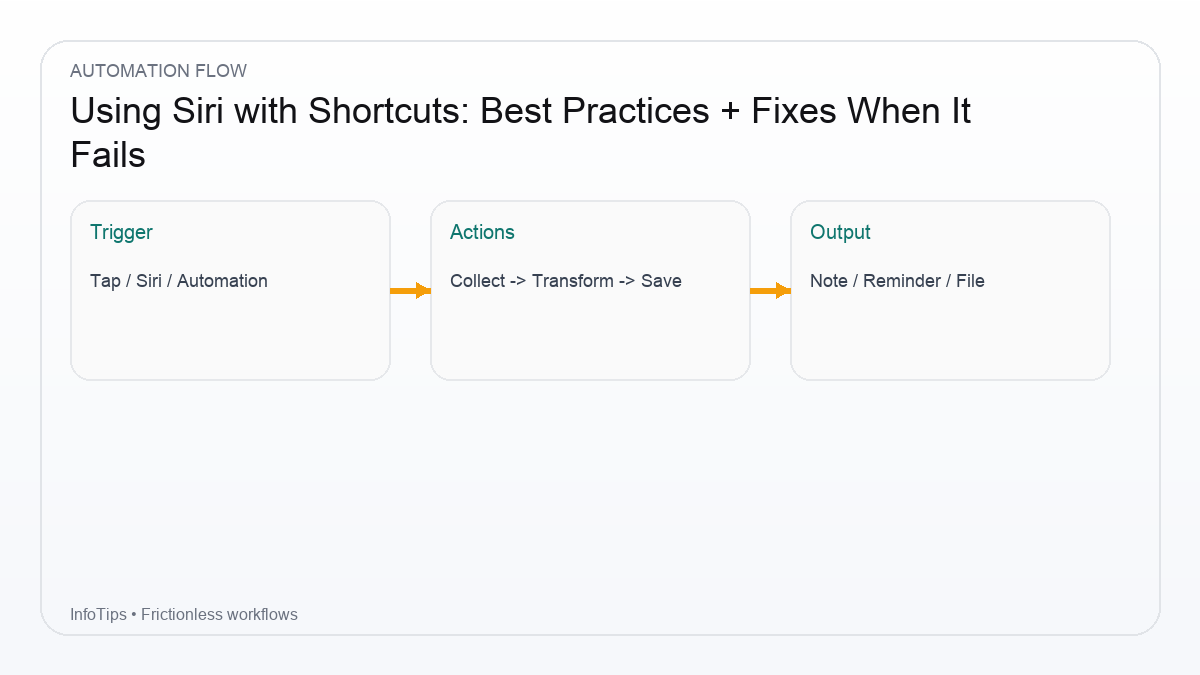
Pattern A: Quick capture
- Ask for Input (Text)
- Append to a Notes inbox
- Show Notification “Captured”
Pattern B: Mode switch
- Set Focus
- Open a specific app
- Optional: start music/playlist
Troubleshooting: Siri runs the wrong thing
| Problem | Likely cause | Fix |
|---|---|---|
| Siri opens an app instead of your shortcut | Name collision | Rename shortcut to be unique |
| Siri says it can’t find the shortcut | Not synced / not indexed | Open Shortcuts app; run once manually |
| Siri starts but hangs | Prompt/permission in background | Reduce prompts; grant permissions |
| It works once, then fails | Context changes | Use explicit inputs and fallbacks |
Troubleshooting: permissions and privacy prompts
If a shortcut touches Photos, Contacts, Location, Calendar, Reminders, or Files, iOS may require permission. The first run is often the worst. Strategy:
- Run the shortcut manually once to grant permissions intentionally.
- Keep “voice shortcuts” limited to actions with stable permissions.
- If you share shortcuts publicly, include a note about required permissions.
Checklist: make a shortcut “Siri-proof”
- Unique name with a verb (Capture, Start, Log, Add, Create)
- One prompt max (or none)
- Final confirmation (notification or spoken text)
- Fallback path when something is missing (empty input, no calendar access)
FAQ
Do I need to add a Siri phrase?
Often no—saying the shortcut name is enough. But adding it can improve reliability.
Can Siri run automations while locked?
It depends on action types and device state. Test your exact workflow.
Why does Siri misunderstand my shortcut name?
Rename it to be shorter and more phonetic. Avoid ambiguous words.
Can Siri run shortcuts on HomePod?
Some shortcuts work, especially those that control Home devices, but capabilities vary.
What should I build next?
A “Meeting Mode” shortcut that toggles Focus and opens your notes app.
Next reads