How to Create Your First iPhone Shortcut: Step-by-Step (Actions, Variables, Sharing)
Goal: build a useful shortcut in 10 minutes
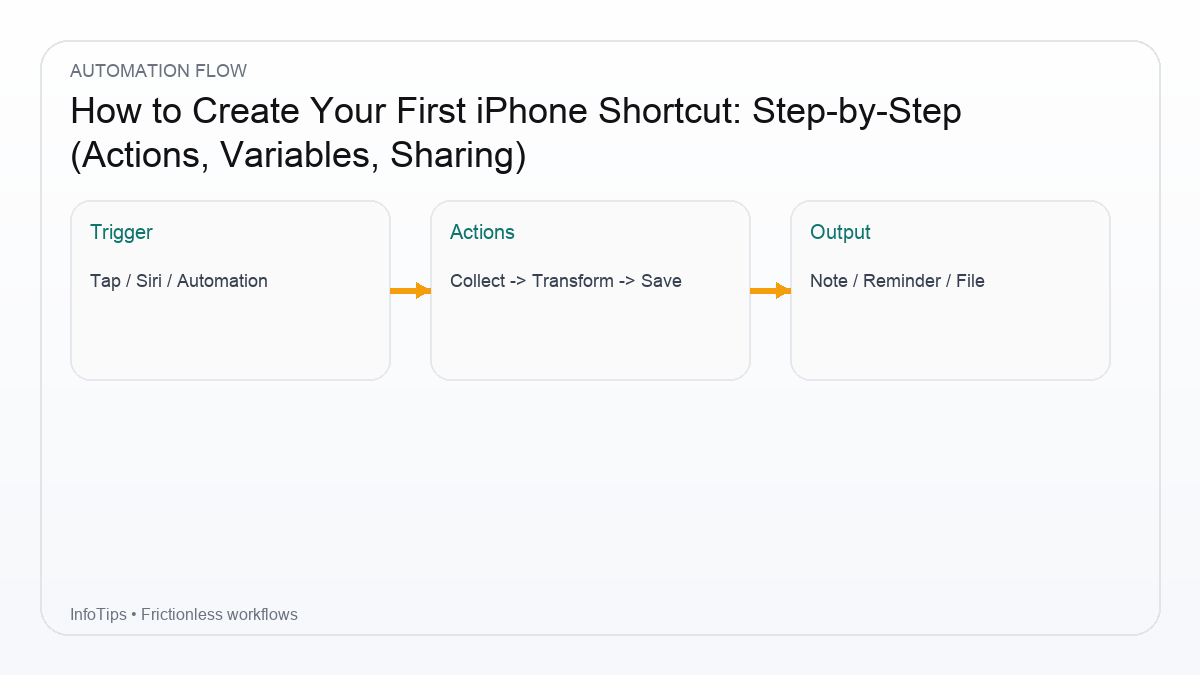
We’ll build a simple but powerful workflow: Capture anything → format it → save to a Notes “Inbox”. Along the way you’ll learn actions, variables, and how to share/import safely.
Before you start
- Open the Shortcuts app
- Tap + to create a new shortcut
- Name it: Capture to Notes
Step-by-step build
1) Ask for input
- Add action: Ask for Input
- Type: Text
- Prompt: “What do you want to capture?”
2) Add context (date + optional clipboard link)
- Add action: Current Date
- Add action: Get Clipboard (optional)
- Add action: Text and format like this:
[{Current Date}]
{Provided Input}
Link: {Clipboard}
If you don’t want clipboard behavior, remove that line. Keep it simple.
3) Save to Notes
- Add action: Create Note
- Title: leave blank (or use a fixed title like “Inbox”)
- Body: the formatted Text
- Folder: pick a folder (create “Inbox” if you like)
4) Confirm it worked
- Add action: Show Notification → “Saved to Notes Inbox”
Variables (what they are and why they matter)
As you add actions, Shortcuts passes data forward. That data becomes a Magic Variable you can insert later. You can also store something as a named variable if you’ll reuse it in multiple places.
| Use case | Best tool | Why |
|---|---|---|
| Use output from previous action once | Magic Variable | Fast, automatic |
| Reuse the same value multiple times | Set Variable | Clear and reliable |
| Branch logic (“if clipboard is empty”) | If | Handles real-world cases |
Make it even better (optional upgrades)
Add tags
- Ask for Input: “Tag (optional)”
- If empty → skip, else append “#tag” line
Add a Share Sheet version
Duplicate the shortcut and set it to accept input from Share Sheet (URLs/text). Then use “Get Details of Safari Webpage” to capture title + URL.
Checklist: reliability fixes
- If user cancels input, stop the shortcut.
- If clipboard isn’t a URL, don’t label it “Link.”
- Keep the shortcut short. Add features only when needed.
FAQ
Why doesn’t my shortcut appear in the Share Sheet?
Make sure it is set to accept the right input types (URL, Text, Images) and that you enabled it in the Share Sheet list.
Can I run this with Siri?
Yes. Say the shortcut name, or add it to Siri suggestions. Clear naming helps.
Can I edit a shortcut someone shared with me?
Yes. After importing, open it and review actions, permissions, and any “Open URL” steps.
How do I back up my shortcuts?
Keep them synced to iCloud and export/share important ones (or keep a text outline in Notes).
What should I build next?
A simple Automation trigger (time of day or app open) that runs a proven shortcut.
Next reads